Best AI Browser Extensions to Boost Your Productivity in March 2026
You've installed a free AI extension for Chrome that's supposed to automate your busywork, but you're still manually copying data between tabs because you're not sure when to actually invoke it. Most browser extensions fail not because they lack features, but because people don't match the tool type to their specific workflow bottleneck. Whether you're drowning in research tabs, drafting the same emails repeatedly, or clicking through forms all day determines which extension category will actually cut your work time versus which ones just sit unused in your toolbar.
TLDR:
- AI browser extensions inject code into web pages to automate tasks, draft content, and research information across all your open tabs
- Extensions use your existing login sessions to act on your behalf without requiring API keys or credential sharing
- Writing assistants handle email drafting and editing, while automation tools execute multi-step workflows like CRM updates
- Security varies widely - review data policies and choose extensions that process actions locally in your browser
- Composite automates professional workflows across any website in your existing browser with SOC-2 Type 2 compliance and zero data retention by AI subvendors
What AI Browser Extensions Actually Do
AI browser extensions add intelligence directly to Chrome, Firefox, or Edge. They break down into four categories based on what they actually do for you.
Content analysis tools read your screen and answer questions about what's there. These handle research papers, long articles, or any page where you need quick summaries or specific answers pulled from visible content.
Writing assistants draft, edit, and refine text in any input field. They suggest better phrasing, catch errors, or generate full emails from short prompts. They work in Gmail, Slack, LinkedIn, and anywhere you type.
Automation extensions execute action sequences. They fill forms, click through processes, gather data across tabs, or update information in different tools. They remove repetitive tasks that normally take dozens of clicks.
Research tools pull information from the web or open tabs. They compile answers and organize findings without forcing you to switch contexts or juggle search results.
Your choice depends on your bottleneck: understanding information, creating content, automating tasks, or gathering research.
Extension Type | Primary Function | Best For | Example Use Cases |
|---|---|---|---|
Content Analysis Tools | Read and interpret visible page content to answer questions and generate summaries | Knowledge workers who process large volumes of text documents and need quick comprehension | Summarizing research papers, extracting key points from long articles, answering specific questions about documentation |
Writing Assistants | Draft, edit, and refine text in any input field across websites | Professionals who write frequent emails, messages, or content and need faster composition with better quality | Generating emails from bullet points, improving message clarity, adjusting tone for different audiences, catching grammar errors |
Automation Extensions | Execute multi-step action sequences including clicks, form fills, and data transfers | Users with repetitive browser workflows involving data entry, updates across multiple tools, or standardized processes | Extracting LinkedIn profiles to ATS, updating CRM records from spreadsheets, generating weekly reports, batch status updates |
Research Tools | Pull and organize information from web sources and open tabs into consolidated views | Researchers and analysts who gather information from multiple sources and need organized findings without tab chaos | Compiling competitive intelligence, preparing meeting briefings, vetting leads, surfacing relevant information from browsing history |
How AI Browser Extensions Work Across Different Tools

AI browser extensions inject code into web pages to read content, detect form fields, and interact with page elements. Unlike tools limited to single apps, extensions operate across every open tab and website you access.
These extensions tap into your browser's existing login sessions. When you ask an extension to update a CRM or pull dashboard data, it uses stored cookies and authentication tokens from your active sessions. No API setup required.
Actions run locally in your browser using your own permissions. This removes the need to share credentials with external services while giving extensions access to any site you can already view.
Writing and Content Assistance Extensions
Writing extensions remove the friction of drafting messages from scratch. They generate emails from bullet points, rewrite sentences for clarity, and adjust tone based on your audience. Grammar tools catch passive voice and suggest stronger word choices across Gmail, Slack, LinkedIn, and other text fields. Content rewriting adapts meeting notes into updates or condenses explanations into summaries without manual retyping, cutting revision cycles and speeding team communication.
Browser Automation and Task Execution Extensions
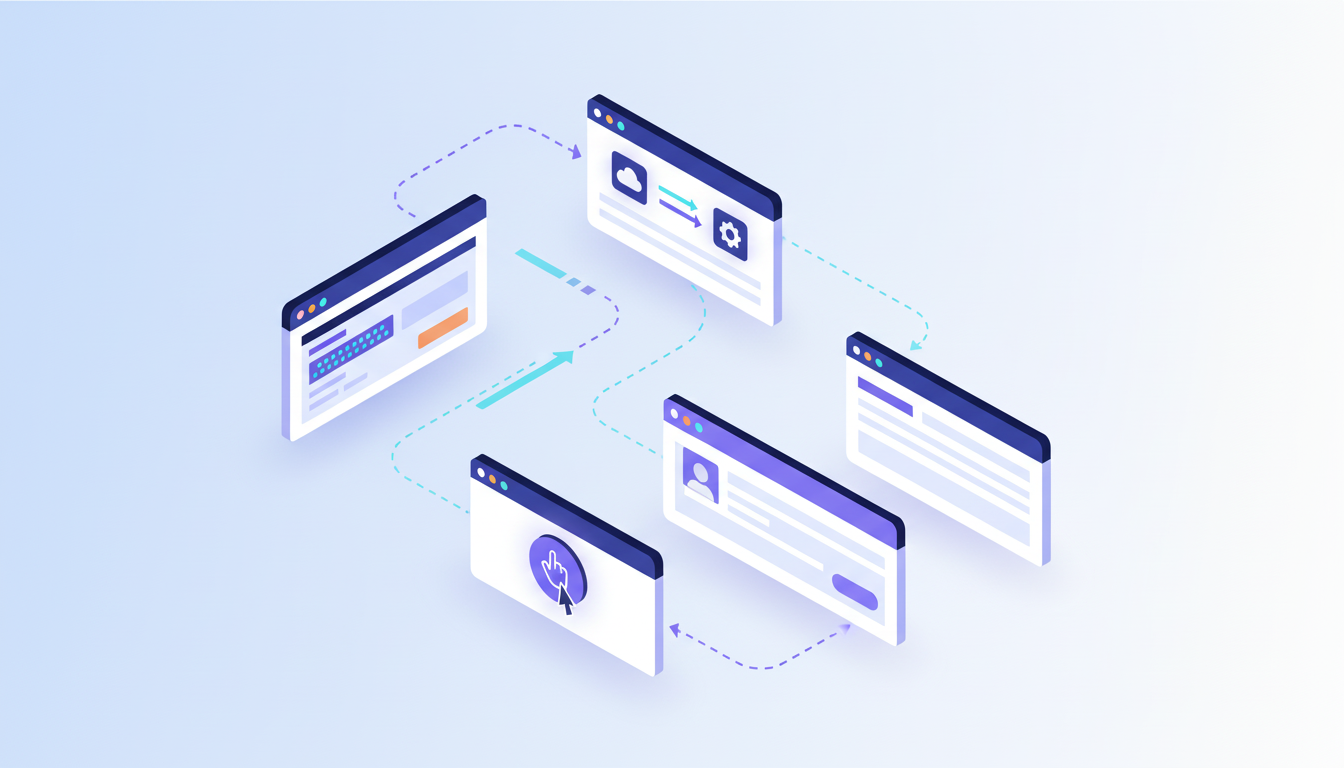
Browser automation extensions handle repetitive workflows by executing clicks, form fills, and data transfers across sites. A recruiter might extract LinkedIn profiles into an ATS automatically, while a salesperson updates CRM records from CSV files in seconds instead of hours.
The impact is measurable. Knowledge workers spend hours switching between browser tabs during routine tasks. Automation collapses those context switches into single commands that run in the background.
These extensions excel at standardized processes: weekly report generation, batch data entry, status updates across project trackers, or pulling information from multiple dashboards. They turn browser busywork into background operations.
Research and Information Retrieval Extensions
Research extensions pull information from multiple sources and organize findings without tab chaos. They summarize articles, extract key data points, and compile answers from several web pages into single views. Instead of reading full reports or scrolling through search results, you get condensed insights that answer specific questions.
Knowledge workers recreate information that already exists because finding it takes longer than starting over. Research extensions solve this by surfacing relevant information from your browsing history, open tabs, and live web queries. They turn scattered data into organized reports.
These tools help when preparing for meetings, vetting leads, or analyzing competitors. They collapse hours of reading into minutes of review.
Browser Extension Security Risks to Understand
Browser extensions request broad permissions to function across websites. Some ask for access to all browsing data, form inputs, and cookies. Review permission lists before installing, and question why a writing assistant needs access to every site you visit.
Data handling varies by vendor. Extensions that process text or automate tasks may send information to external servers for AI processing. Recent research shows browser agents can leak sensitive credentials and personal data through prompt injection attacks. Check whether extensions store data, share it with third parties, or retain conversation history.
Local execution matters for sensitive work. Extensions running actions in your browser using existing sessions avoid transmitting credentials to external services. Look for vendors with clear data policies, SOC-2 compliance, and zero-retention agreements with AI subvendors if you handle confidential information.
Extensions for Students and Academic Work
Students benefit from extensions that analyze lecture slides, PDFs, and research papers to explain concepts and break down complex problems. Screenshot-based tools capture problem sets and deliver methodology explanations that build understanding instead of shortcuts.
Research extensions organize academic sources, summarize journal articles, and track citations to reduce literature review time. The key distinction is using these tools to grasp material faster, not to bypass learning entirely.
AI Extensions vs AI Browsers
AI browsers promise deep integration between browsing and intelligence, but switching from Chrome or Edge means losing bookmarks, saved passwords, extensions, and login sessions. IT teams often block browser migrations, creating approval delays.
Extensions add AI to your current browser instead. You keep existing workflows, saved data, and installed tools. Setup takes minutes, not weeks of re-authentication.
AI browsers control the entire environment, optimizing speed and interface design around AI interactions. Extensions work within browser limitations and depend on each website's structure.
Extensions win when you need immediate productivity improvements without organizational friction or workflow upheaval.
Measuring Productivity Gains from AI Browser Extensions
Productivity gains depend on task fit. Extensions save the most time on repetitive actions like data entry, email drafting, and multi-tab research. Time savings range from minutes per task to hours per week, depending on workflow complexity and how often you repeat the same processes.
Rework cuts into those gains. AI-generated content often needs editing for accuracy, tone, or context. Recent research found organizations waste up to 43% of potential AI productivity gains on correcting outputs. Extensions that automate execution instead of generation reduce rework risk.
Track before-and-after time on specific tasks to measure real impact. Focus extensions on high-frequency, low-variability work where quality requirements are clear.
Choosing the Right AI Browser Extension for Your Workflow
Start with the task that eats most of your day. If you spend hours drafting emails, test writing assistants first. If you copy data between tools repeatedly, try automation extensions. Match the extension type to your biggest time sink.
Test with specific workflows before committing. Pick one recurring task and run it through the extension for a week. Track time saved and output quality. Extensions that fail on representative work won't improve with more use.
Job function narrows choices quickly. Salespeople need CRM automation and email drafting. Recruiters benefit from candidate research and outreach generation. Product managers want status syncing and report compilation. Pick extensions built for your workflow patterns.
Free versions work for occasional use. Paid plans make sense when you repeat the same task daily.
How Composite Combines the Best of Browser Extensions and Automation
Composite brings professional-grade automation to your existing browser without requiring a switch. Install the extension in Chrome, Edge, or Brave, and invoke it with Cmd/Ctrl + Shift + Space from any website. Describe a task in plain English, and Composite plans and executes the click-by-click sequence across tabs and tools.
The architecture tackles security concerns head-on. Actions run locally in your browser using your existing login sessions. We're SOC-2 Type 2 compliant with zero data retention by AI subvendors.
Composite routes tasks to the best model for each job, balancing speed and intelligence instead of locking into a single provider. Research shows generative AI boosts productivity when applied to the right tasks.
Final Thoughts on Finding the Right AI Extension
Pick an AI extension for Chrome based on what consumes most of your day, not what sounds impressive. Test it on one recurring task for a week and measure the difference. Free versions work fine for occasional use, but paid plans pay off when you repeat the same work daily.
FAQ
How do AI browser extensions access my work tools without requiring API setup?
Extensions use your browser's existing login sessions and authentication tokens from active tabs. When you're already signed into your CRM or project tracker, the extension uses those stored cookies to interact with the site using your own permissions (no credentials or API keys needed).
What's the difference between browser automation extensions and AI browsers?
Browser automation extensions add intelligence to Chrome, Edge, or Brave without requiring you to switch browsers or lose your bookmarks, passwords, and existing sessions. AI browsers require a complete migration and often face IT approval barriers, while extensions work in minutes within your current setup.
Can AI browser extensions handle tasks across multiple websites at once?
Yes. Extensions inject code into every open tab, allowing them to execute sequences across different sites - pulling data from one dashboard, updating a CRM in another tab, and drafting an email in a third. They work across your entire browser environment, including every application you access.
Why do AI-generated outputs from extensions still require editing?
AI content generation often misses context, tone, or accuracy that humans catch immediately. Research shows organizations waste up to 43% of potential AI productivity gains correcting outputs. Extensions focused on automating execution (clicking, filling forms, transferring data) instead of content creation reduce this rework risk.
How does Composite handle security differently than other browser extensions?
Composite executes all actions locally in your browser using your existing login sessions, avoiding credential transmission to external services. We're SOC-2 Type 2 compliant with zero data retention by AI subvendors, and we route tasks to the best-fit model without locking into a single AI provider.